
Wordela is a dynamic, continuously evolving platform backed by a dedicated team of engineers, educators, curriculum specialists, and designers committed to delivering meaningful updates that enhance both teaching and learning. Here’s what’s new:
What’s New?
Learning Outcomes Screen
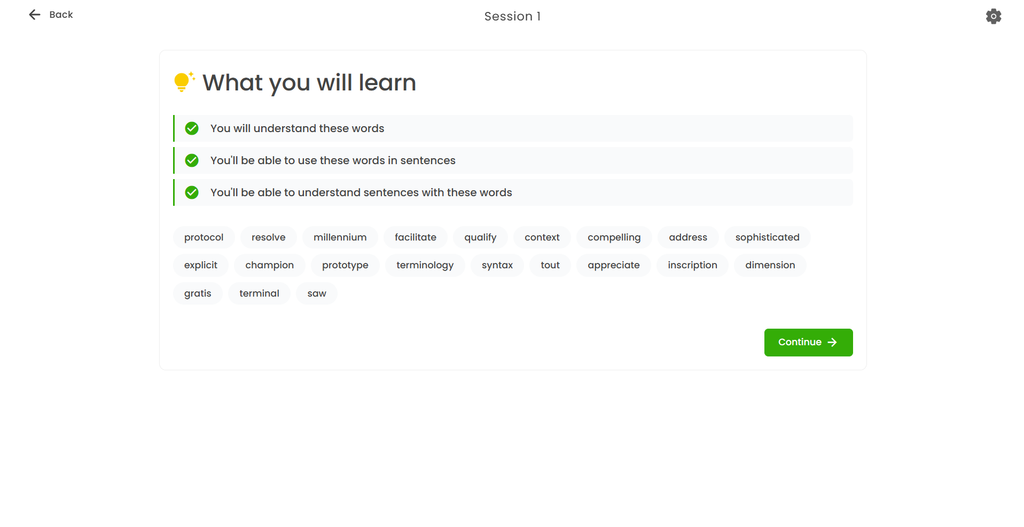
When a student begins a Learn Vocab or Learn Spelling session, they now see a “What you will learn” screen. Instead of jumping straight into activities, students see exactly what they’ll understand and be able to do by the end—complete with the words they’ll master. It’s simple, but it transforms the experience from “do this activity” to “here’s what you’re about to accomplish.”
Learn Vocab
Learn Spelling
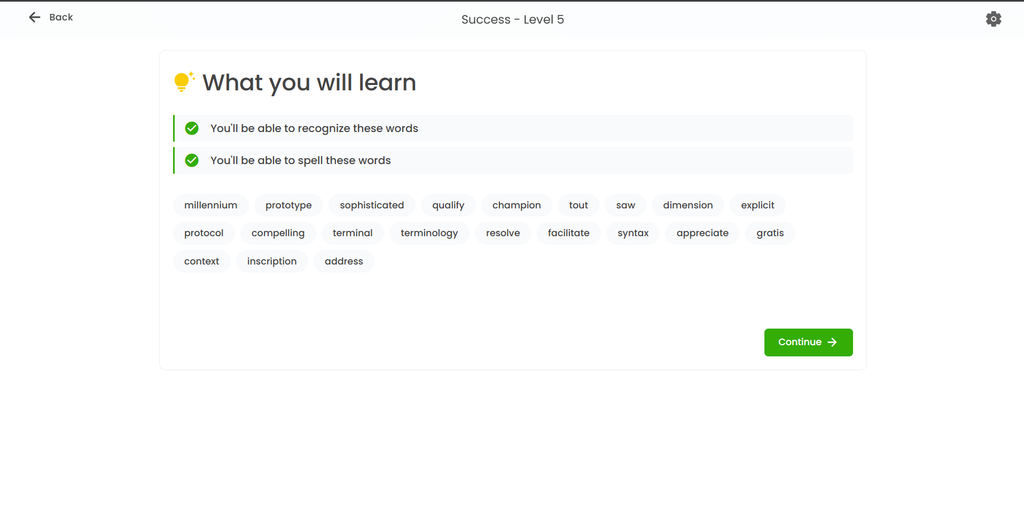
This feature applies to all Wordela accounts.
Enable Clues Setting for Spelling Tests
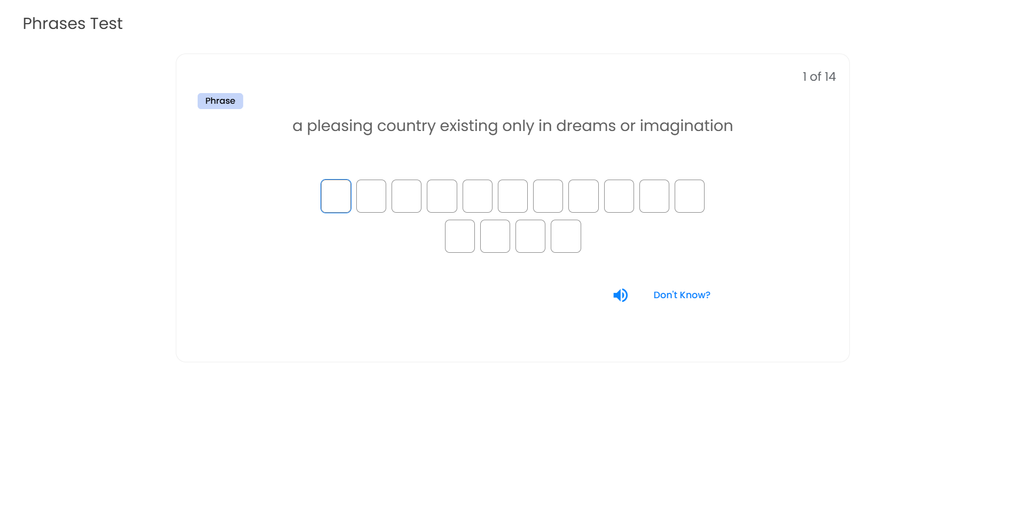
When students practice spelling, they can ask for clues to help them figure out a word. Until now, that same clue button also appeared during spelling tests, meaning students could get hints on something meant to measure what they actually know.
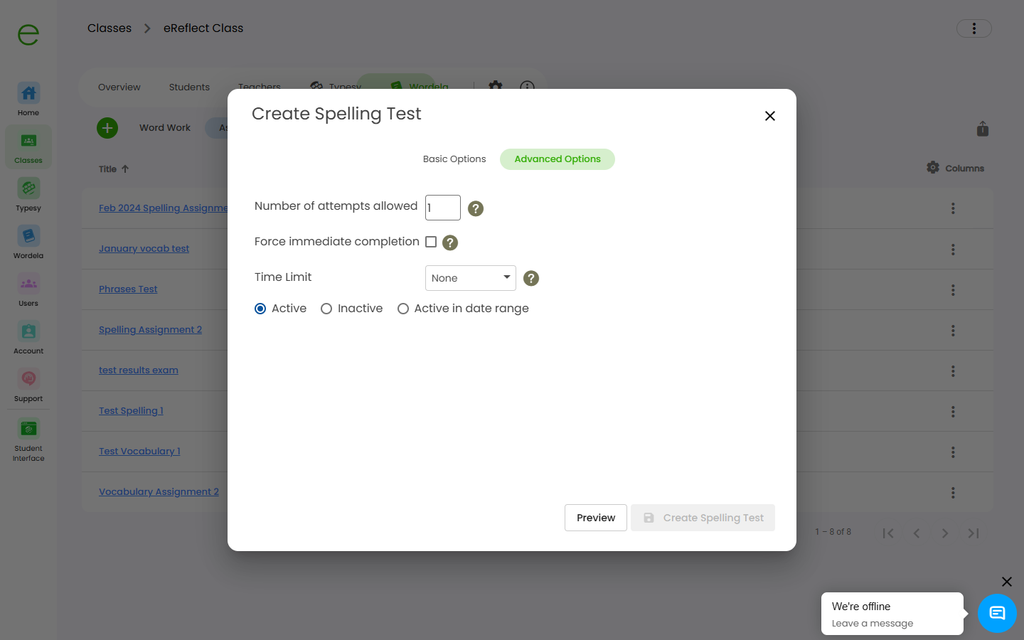
Teachers now decide: when creating a spelling test assignment, there is a new “Show Clues” toggle. It is off by default, so tests even created before this feature are hint-free unless the teacher deliberately allows clues. This gives teachers full control over whether a test is a learning opportunity or an assessment of actual knowledge.
Before:
After:


This feature applies to Wordela EDU and Homeschool accounts.
Activity Update: Smarter Multiple Choice Answers
Choices are now more closely aligned with the question, making the answers less obvious. Answer selection is now more about understanding words than pattern-matching, so students focus on actual comprehension rather than just recognizing familiar patterns.
Old:
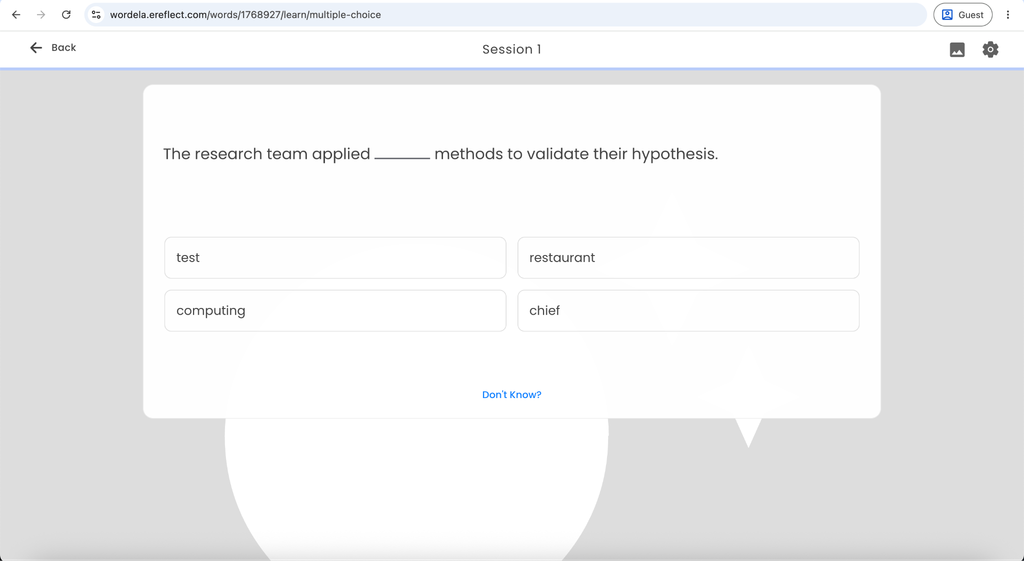
New:
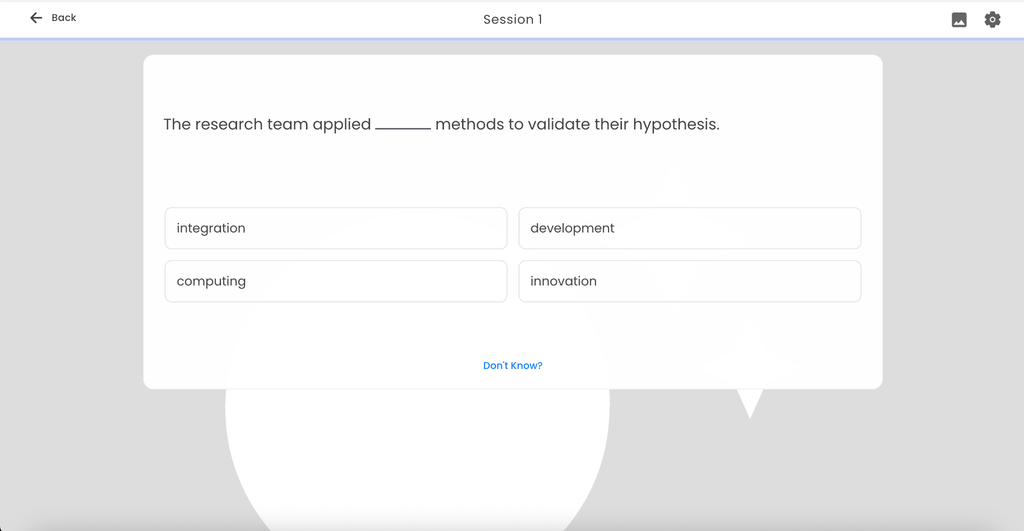
This feature applies to all Wordela accounts.
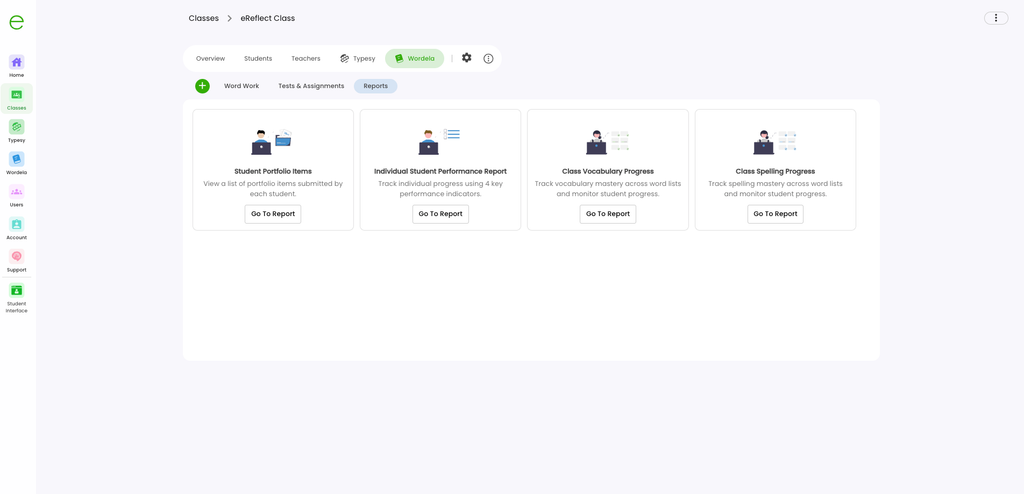
Portfolio 2.0 – New Student Portfolio Items Report
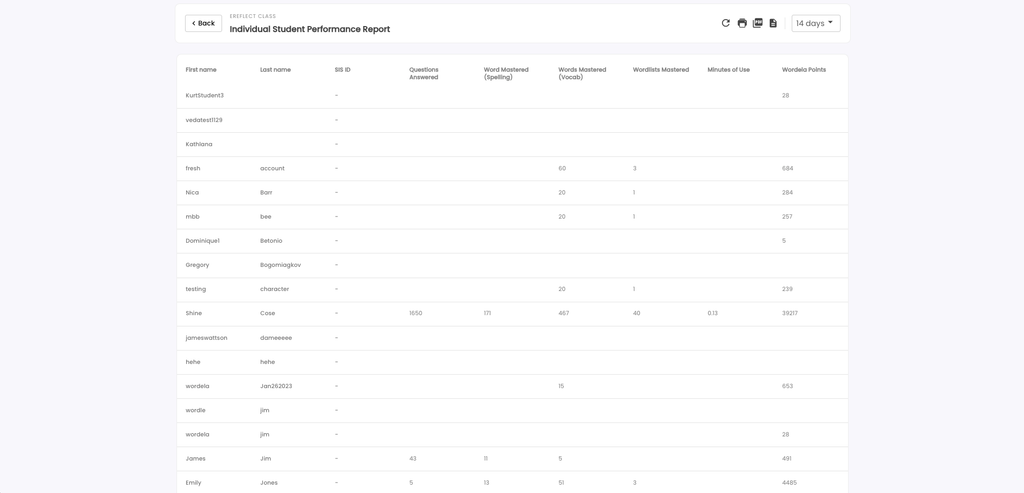
New Student Portfolio Items report for Wordela classes, with an item content dialog. The redesigned class reports screen is now available on Wordela tabs.
The report includes:
- Multi-student filtering: Quickly find work from specific students or view all at once
- Custom date ranges: Filter portfolio items by timeframe
- Export to CSV, PDF, and Print
This feature applies to Wordela EDU accounts.
Natural-Sounding Narration for Usage Examples
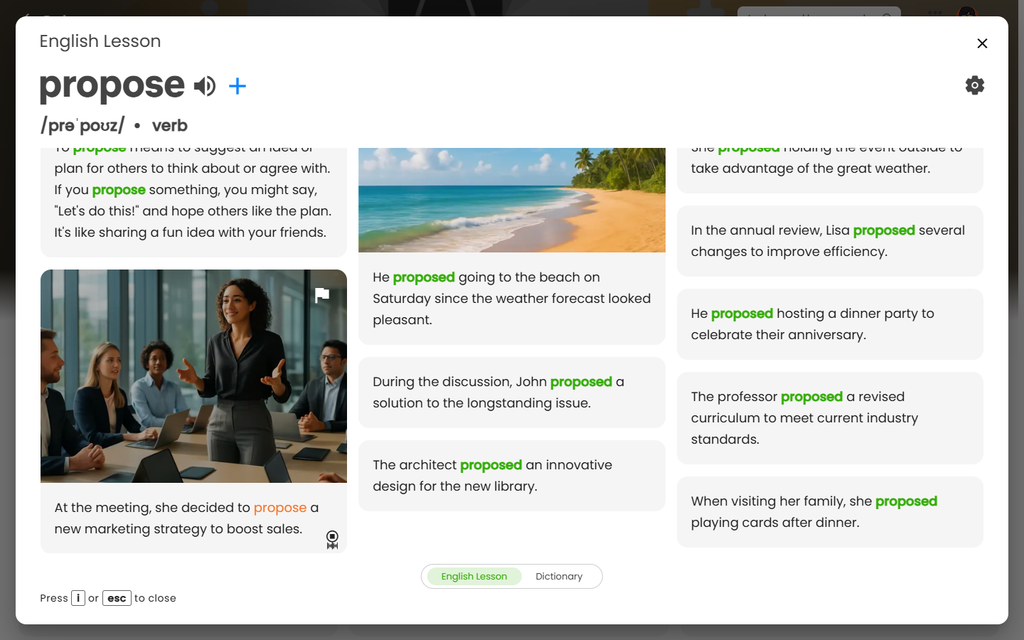
Usage example sentences are now read aloud using pre-recorded, natural-sounding narration instead of the browser’s computer-generated voice. As the recording plays, each word in the sentence is highlighted in sync — like a follow-along/karaoke effect — so students can connect what they hear with what they read. This works in the Word Info lesson tab, Word Scroll, and the inline lesson shown after a wrong answer. If a word does not have a recording yet, the app quietly falls back to the previous text-to-speech voice, so audio is never missing.
This feature applies to all Wordela accounts.
Multi-Class Support and Homescreen
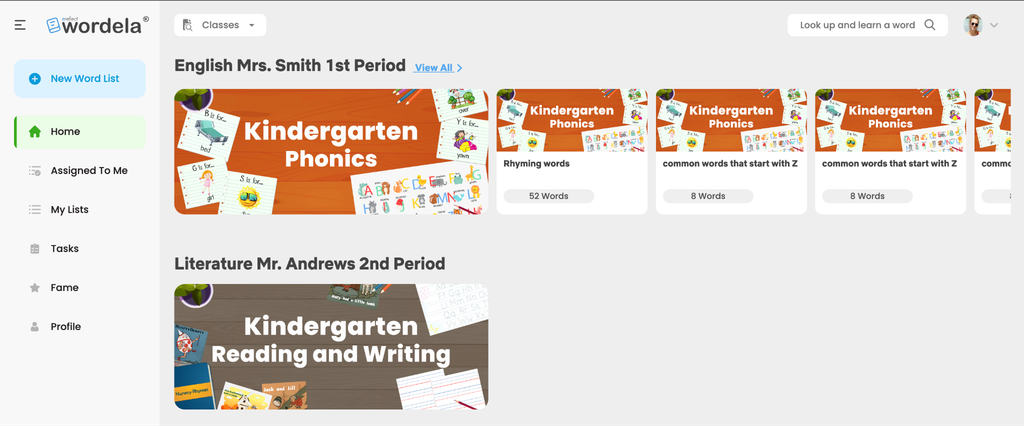
Students enrolled in more than one class (Typesy and Wordela) now get one homescreen row per class, so assigned work is divided by class instead of mixed together. This keeps students organized and prevents confusion when juggling multiple courses.
How it works:
- Classes are ordered by most recently used
- Each row has a View All option for that class
- A new Classes dropdown in the top toolbar switches between classes
- The settings of the last class the student clicked into are the ones that apply
New Theme: High Contrast
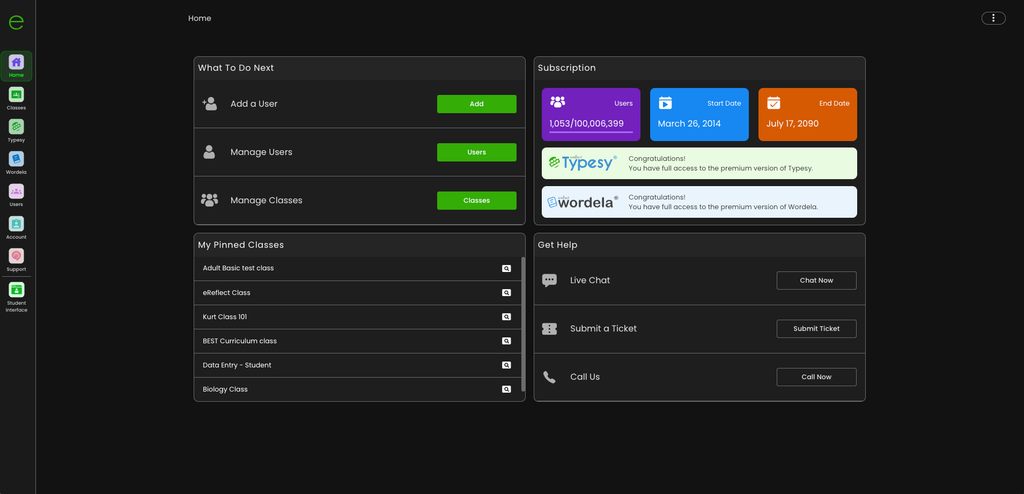
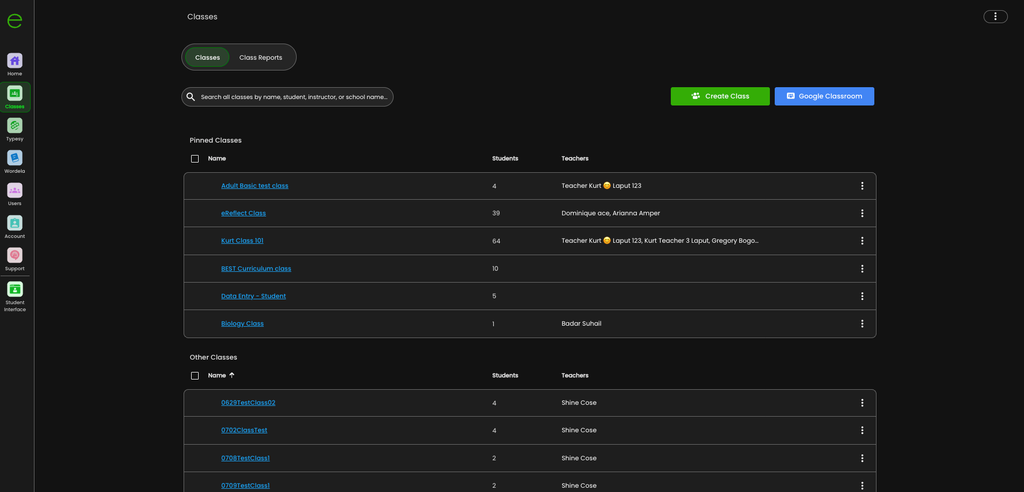
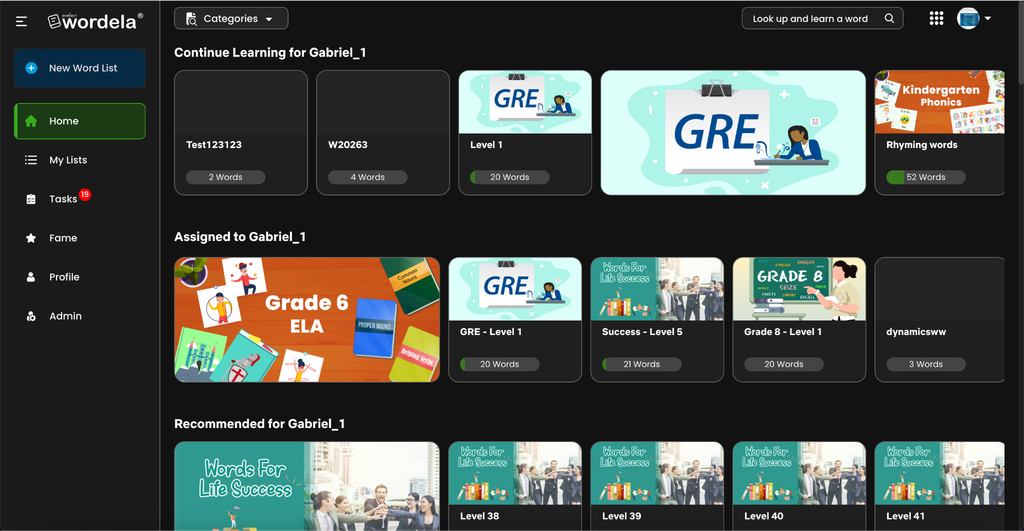
A new High Contrast theme has been added as a fourth theme option in the admin and student interfaces. The theme features high-visibility styling across the app shell, Home, classes, reports, and dialog, making the platform accessible for students with low vision. Theme switching happens instantly with smooth transitions and no flashing or reloading of styles, so students can customize their experience without disruption.
For student interface:
This feature applies to all Wordela accounts.
User Experience Improvements
- Remove Auto Capitalization in Word List Names: Word list names are now kept exactly as typed. Previously, the first letter was forced to uppercase as the name was being typed, which mangled names that are deliberately lowercase. For example, a list named “iPhone vocabulary” became “IPhone vocabulary”. The mobile keyboard also no longer auto-capitalizes the first letter. This applies everywhere word lists are named: creating, renaming, and copying a list, in both the student apps and the admin interface.
- Admin Interface Terminology: In the admin interface, “Create Assessment” is renamed to “Create Tests & Assignments” for clearer language.
Looking Ahead
Every update to Wordela starts with the same question: how can teaching be easier and learning be more meaningful? This August, the answer comes in the form of clearer learning outcomes, more natural vocabulary practice, and smarter ways for students to build their skills—all designed to help educators teach with confidence and give students genuine connections to the words they’re learning.
There’s more in the pipeline. As feedback continues to shape the roadmap, Wordela remains committed to building a platform where vocabulary growth feels natural, supported, and rewarding—for every type of learner, in every kind of classroom.